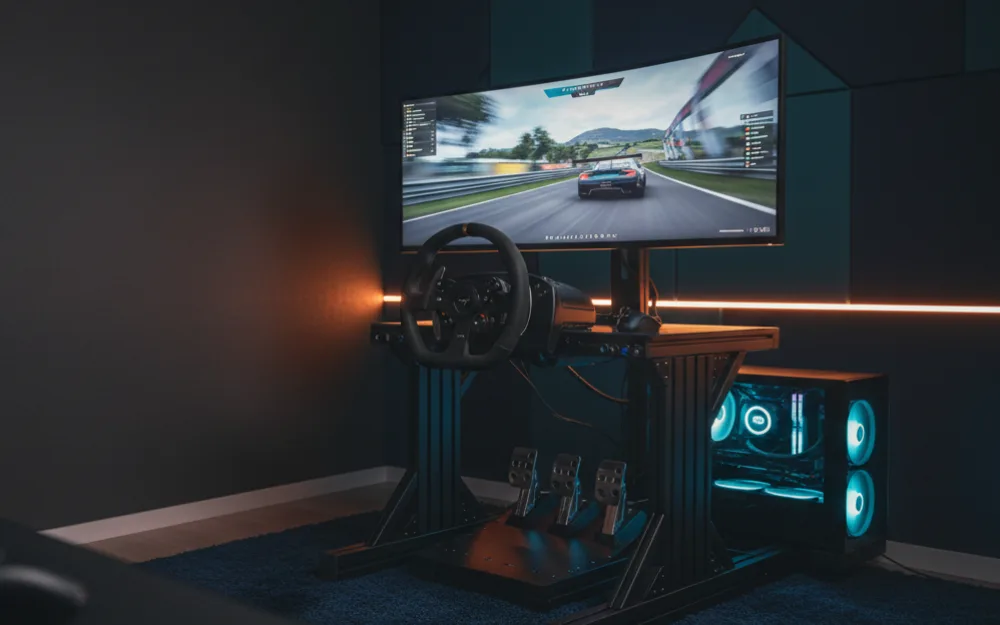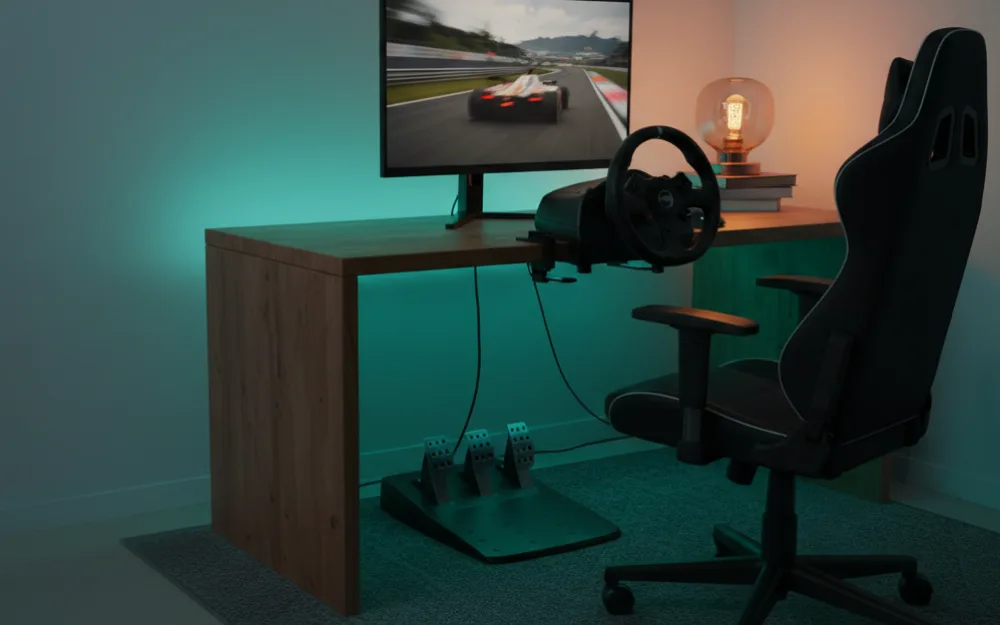


This guide gets your racing wheel connected and working on a PC, and it covers the one thing that trips up most new buyers coming from console: on PC, the manufacturer’s own driver software does the real work, not the operating system. By the end you will know the right order to install software and connect hardware, how to confirm Windows actually sees the wheel, and how to work through the most common reasons it does not respond in a game. PC is the most flexible platform for a wheel, since it is not locked to a single maker’s licensing program the way a console is, but that flexibility means a bit more setup on your side.
These steps follow the setup routine most PC wheel manufacturers publish, cross referenced with the order experienced sim racers use to avoid driver conflicts, and you can read how we review. If you are choosing between platforms, our sim racing wheel compatibility guide covers what each wheel family supports, and you can browse more of our Compatibility guides once you are connected.
What you need before you start
| Item | Why it matters |
|---|---|
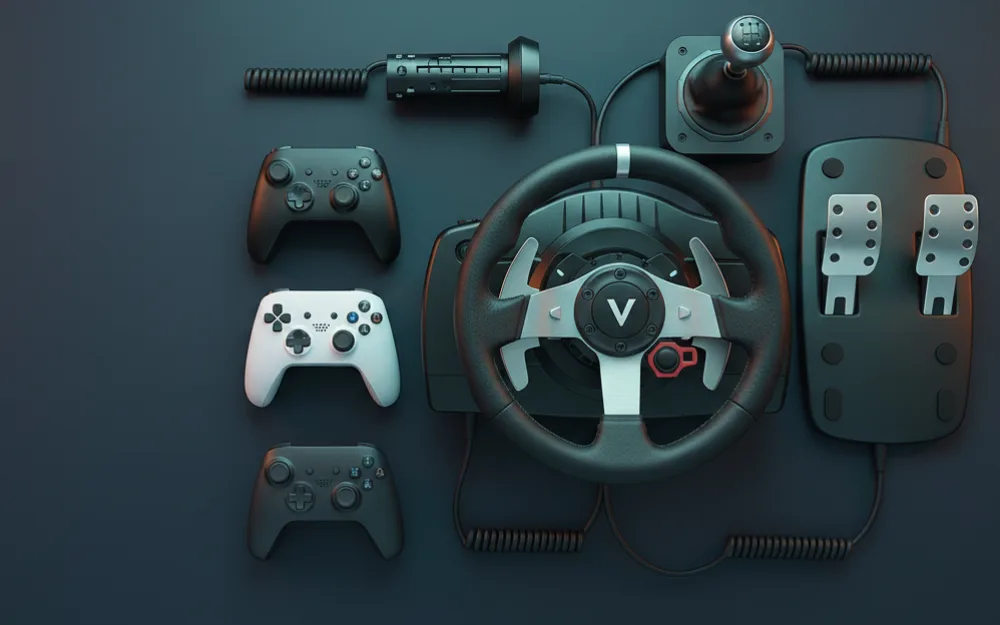
| Your wheel base, pedals, and any shifter | Most connect to the base first, then the base to the PC |
| The wheel’s USB cable, and an external power supply if it has one | Many force feedback wheels cannot reach full strength on USB power alone |
| The manufacturer’s driver software, downloaded from their official site | PC wheels rely on this software far more than console versions do |
| Administrator rights on the PC | Driver installation usually requires them |
Step 1: install the manufacturer’s driver software first
Unlike a console, a PC wheel depends on the maker’s own software to work correctly, whether that is Logitech G HUB, Fanatec’s driver and FanaLab, Thrustmaster’s driver and control panel, or MOZA Pit House. Download it directly from the manufacturer’s official site rather than a search result, since outdated or third party copies are a common source of odd behavior. Install it, restart the PC if prompted, and only then connect the wheel. Installing the software first means Windows and the app recognize the hardware correctly the moment it is plugged in, rather than loading a generic driver that has to be replaced afterward.
Step 2: connect the hardware in order
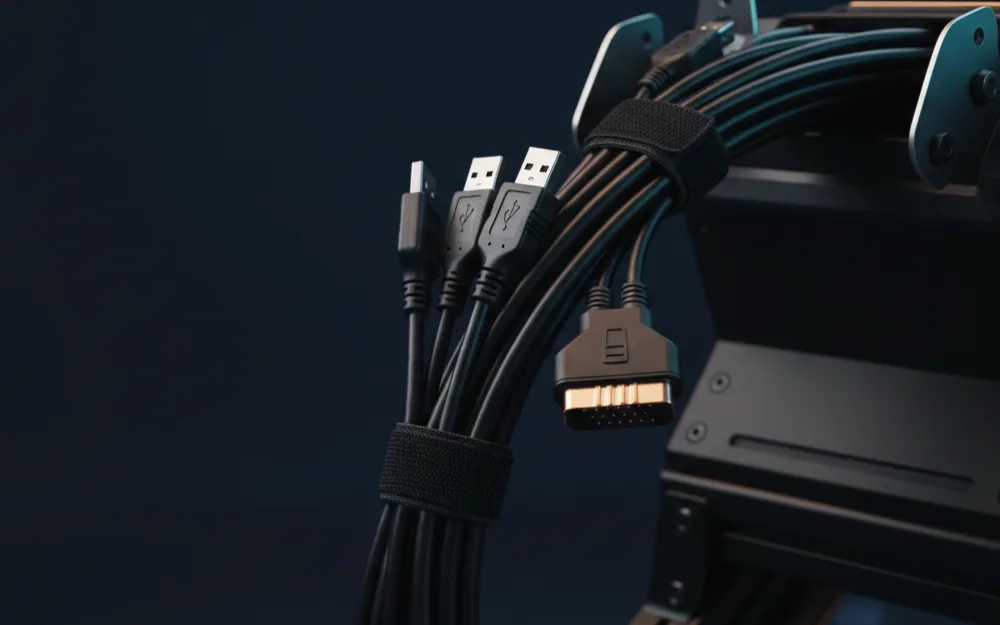
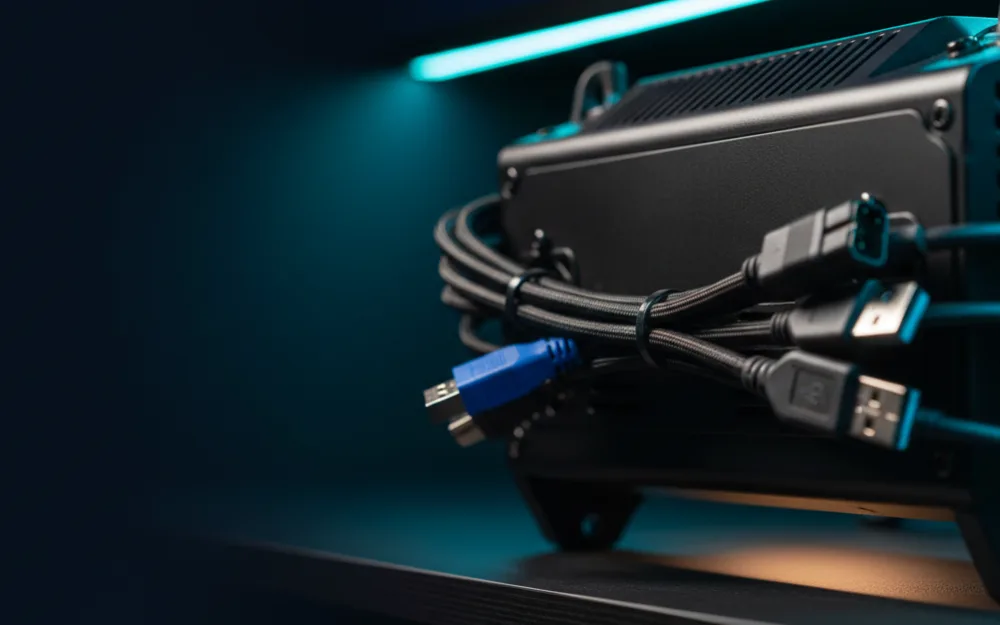
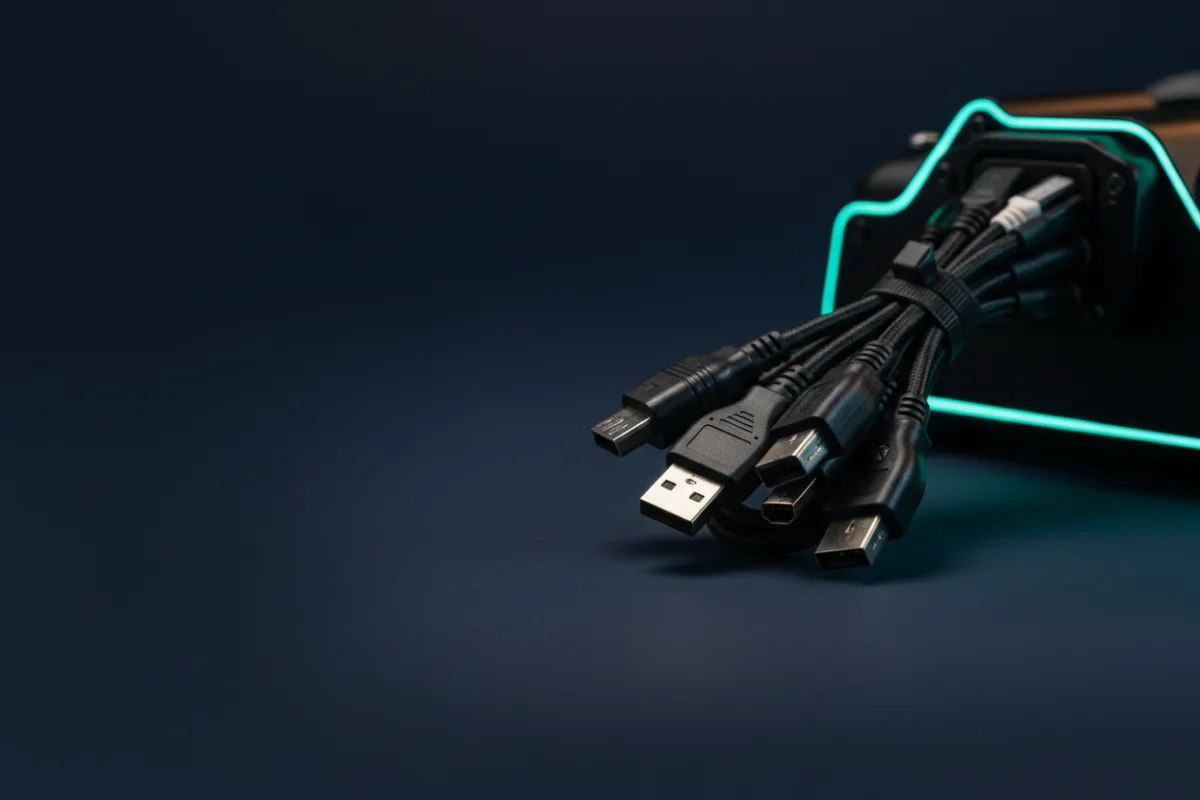
Connect the pedals and any shifter to the wheel base first. Connect the base to the PC using a USB port built into the motherboard or a powered port on the case, not a cheap unpowered hub, since some bases draw more current than a basic hub can reliably supply. If your wheel has its own external power supply, plug that in as well. Many direct drive bases include their own built in USB hub, meant for connecting pedals, a shifter, or a handbrake through the base rather than running separate cables to the PC; if your wheel has one, use it, since it keeps the whole setup on a single upstream connection instead of competing for ports elsewhere on the case. Power on the base and let it complete its calibration sweep with your hands clear of the wheel.
If you are moving a wheel from console to PC, or between two different PCs, unplug it from the previous system first rather than leaving it connected to both. A base that was calibrated and paired with one machine’s driver install can behave inconsistently if a second machine tries to talk to it at the same time.
Step 3: confirm Windows sees the wheel
Before you open a game, check that Windows itself recognizes the wheel as an input device. Windows’ own game controller settings will list it and let you watch the steering and pedal axes move as you use them. Most manufacturer software includes its own live input diagnostic as well, and either one is a useful checkpoint, since it tells you whether the problem is the connection itself or something specific to the game you are about to launch. Do not skip this step; it is the fastest way to rule out a hardware or driver issue before you start troubleshooting a game’s settings menu.
Step 4: set rotation and force feedback, driver first, then in the game
In the manufacturer’s software, set rotation to the full range and let each game request the correct angle per car rather than fixing a number yourself, and set overall base strength to a moderate level with real headroom left. Keep driver level spring, damper, and friction effects off or low to start, since those filters can hide detail the game is trying to send you. From there, every game handles its own force feedback strength differently, so tune that inside the game itself. If you race a specific title, our setup and settings guides cover the process for popular games and wheels in more detail.
Common problems
Work through the causes in order of likelihood rather than guessing.
| Symptom | Most likely cause and fix |
|---|---|
| Not detected in Windows at all | Reseat the USB cable into a different motherboard port, avoid unpowered hubs, reinstall the driver software in order |
| Detected in Windows but no force feedback | External power not connected, or force feedback disabled in the game’s settings |
| Detected in Windows but not in a specific game | The game needs to be told to scan for new devices, or an exclusive mode setting is blocking it; check the game’s own controller settings |
| Input feels jumpy or inconsistent | Outdated firmware, or another connected device competing for the same USB bandwidth; see USB polling rate explained |
| Wheel works but pedals or shifter do not | If they plug into the base, confirm they are seated fully into the base’s own ports; if they use their own USB cable, check that connection before checking cables further |
Your next step
Install the manufacturer’s driver software first, connect the hardware in order, and confirm the wheel shows up in Windows before you ever open a game. If a Logitech wheel specifically will not show up, our Logitech wheel not detected on PC fix walks through that case in detail. To pick a wheel with strong PC support from the start, browse our best sim racing wheels guide, and see the sim racing wheel compatibility guide if you plan to move between PC and console.