

This guide gets your racing wheel connected and working on an Xbox Series X, and it explains the one rule that trips up most new buyers: the console only accepts wheels that carry official Xbox licensing. By the end you will know how to check compatibility, connect the wheel in the right order, and work through the common reasons it does not show up in a game. Before you buy or plug in anything, ask the key question up front: does this wheel list official support for Xbox Series X|S? That single check saves the most frustration.
These steps follow how Microsoft’s accessory licensing works on Xbox, cross referenced with the setup routine experienced console racers use, and you can read how we review. For the wider picture, see our sim racing wheel compatibility guide and browse Compatibility for more platform specific guides.
The rule that decides everything: official Xbox licensing
Xbox Series X does not accept just any wheel. For security and platform reasons it only works with wheels that carry Microsoft’s own accessory licensing, and a wheel built only for PC or only for PlayStation will not function on it. A handful of wheel families have built their reputation specifically around Xbox support, including Logitech’s G920, Thrustmaster’s TX line, and MOZA’s Xbox licensed direct drive bases, but licensing changes by model and generation, so always confirm the exact wheel you are buying rather than assuming a whole brand line is covered. Check the box or the maker’s compatibility page for Xbox Series X|S support before anything else. If it does not list Xbox, no cable trick or setting will make it work, so the fix is choosing the right wheel, which our best racing wheel for Xbox Series X roundup is built to help with.
What you need before you start
| Item | Why it matters |
|---|---|
| A wheel and base with official Xbox Series X|S licensing | Unlicensed hardware will not be recognized at all |
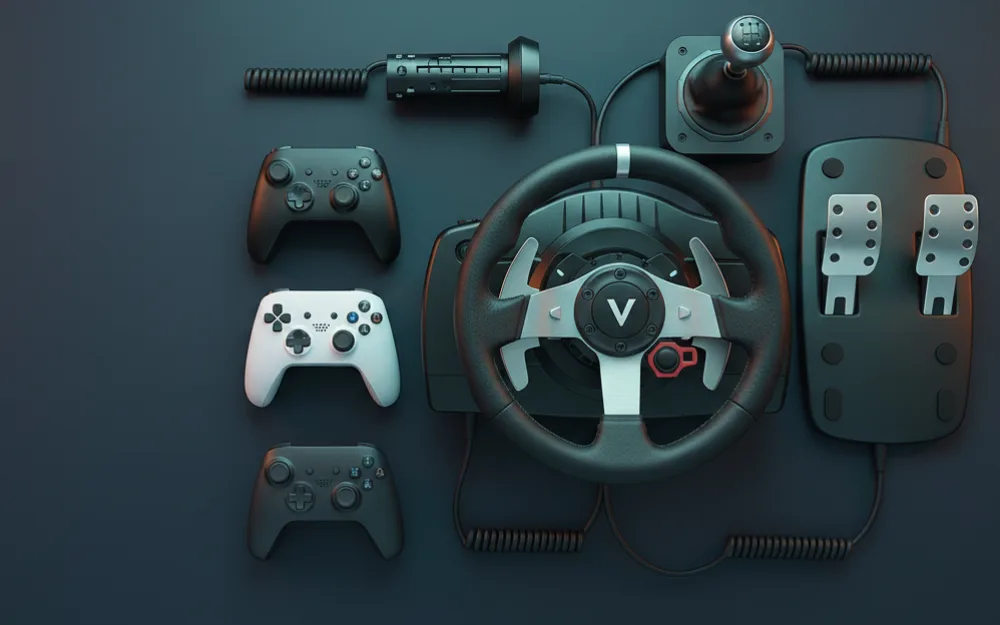
| Pedals and shifter, if sold separately | Usually connect to the base rather than the console directly |
| The wheel’s USB cable, and an external power supply if it has one | Many force feedback wheels cannot reach full strength on USB power alone |
| An Xbox Series X with current system software | Accessory support is tied to system updates |
Step 1: connect the hardware in order
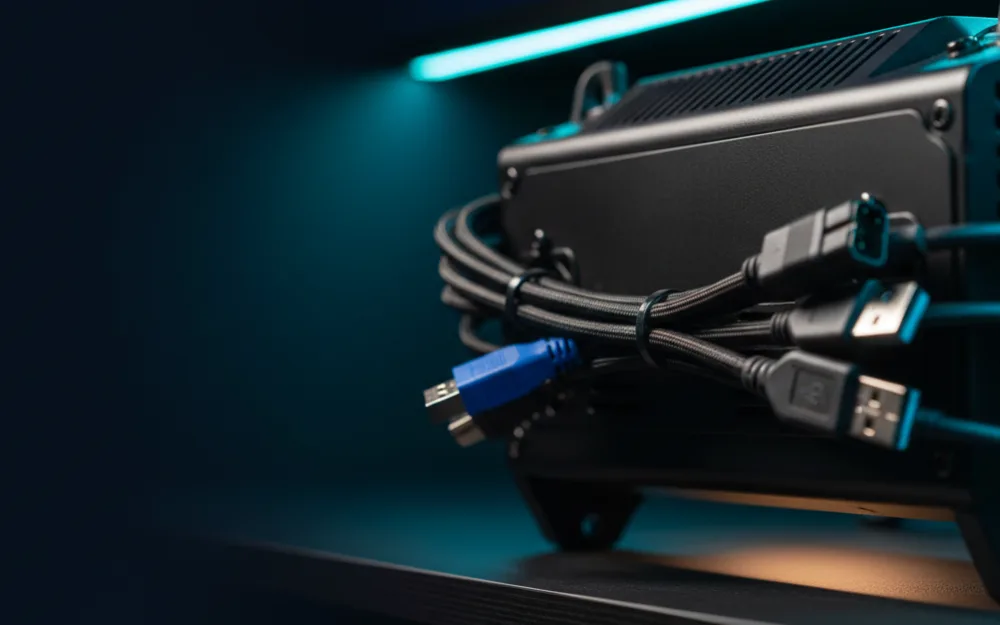
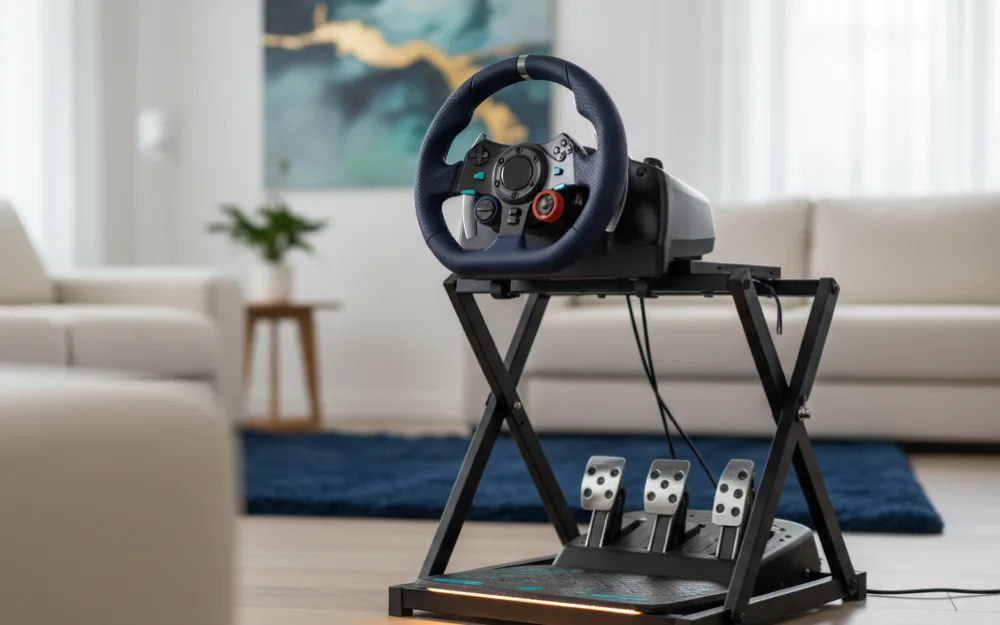
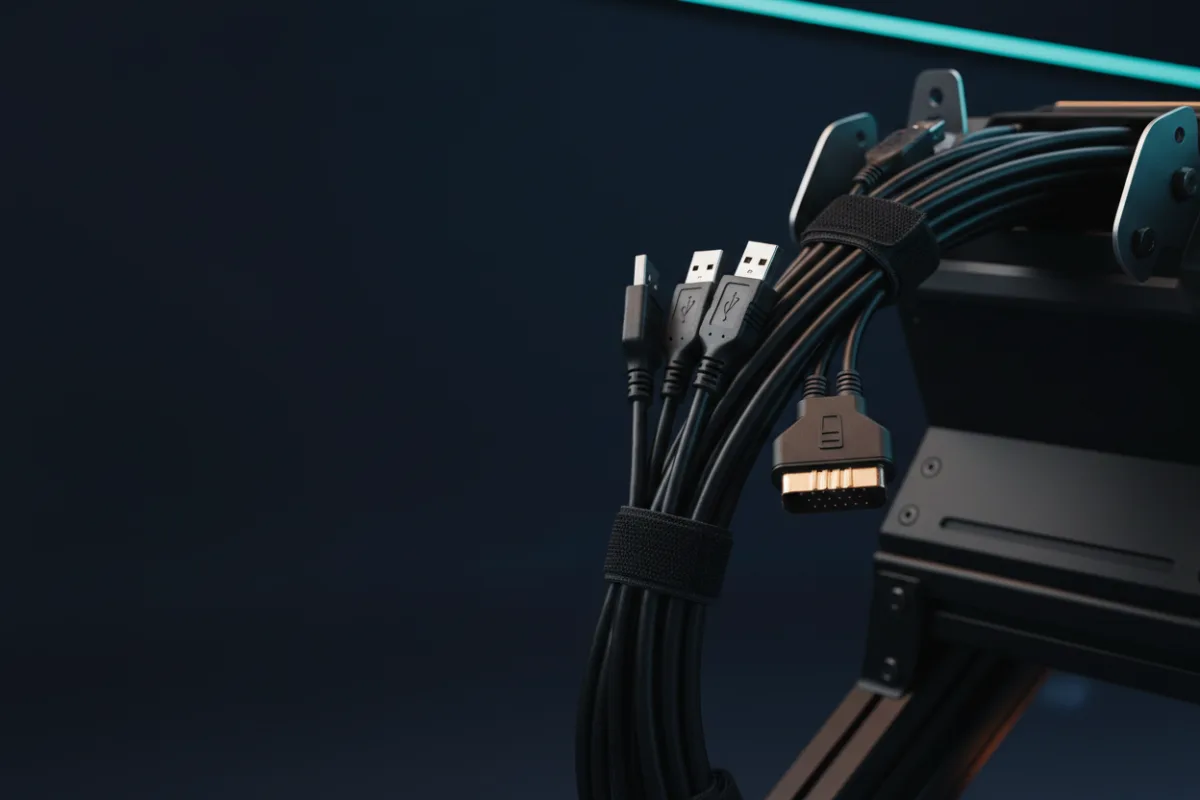
Assemble before you power on. Connect the pedals and any shifter to the wheel base first, then connect the wheel base to the Xbox Series X with its USB cable into a port on the console itself rather than a hub or extension cable. If your wheel has a dedicated power supply, plug that in too. Then power on the console and let the wheel initialize.
Step 2: let the wheel calibrate, then check its mode switch
When it powers on, many wheels turn lock to lock on their own to calibrate. Keep your hands clear during this sweep. Some wheels have a physical mode switch, for example a PC or console selector, so make sure it is set to the Xbox position if one exists. If your wheel has a firmware updater through a companion PC app, run any pending update before your first console session, since firmware fixes often resolve early compatibility quirks and are far easier to diagnose on PC than on the console itself.
Step 3: configure it inside the game
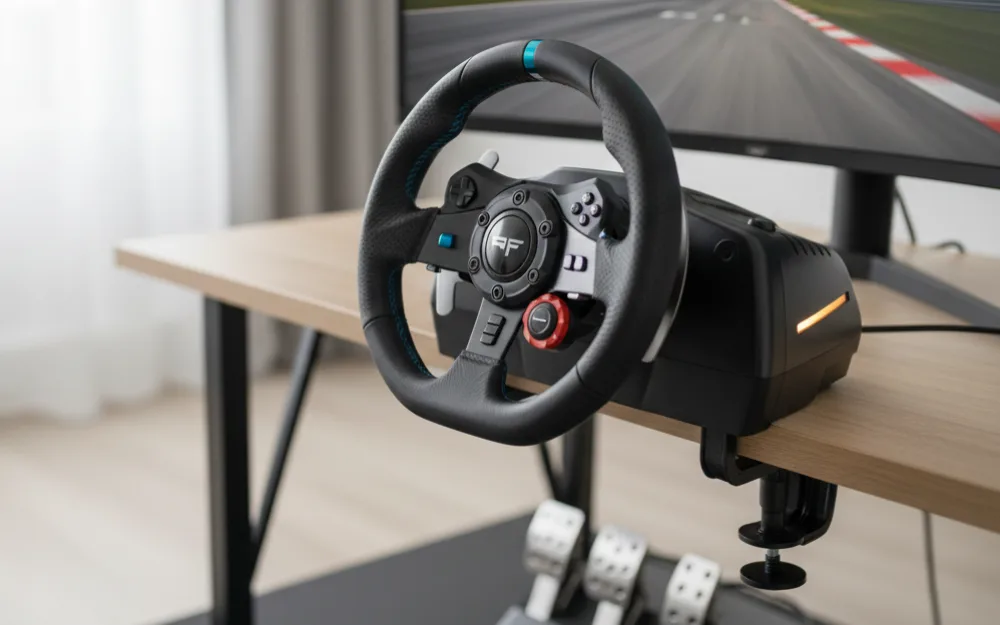
Xbox has no system wide wheel settings menu. Wheel support lives inside each game. Launch a wheel supporting racing title, such as a major Forza game, and go to its controller or wheel settings. The game should detect the wheel and offer force feedback and calibration options there. If a game does not list wheel support at all, the wheel will not work in that title even though it works in others, so check that the specific game you want to play supports wheels before assuming a connection problem.
When the wheel is not detected
Work through the causes in order of likelihood rather than guessing.
| Symptom | Most likely cause and fix |
|---|---|
| Wheel ignored in every game | Wheel is not officially licensed for Xbox; confirm on the maker’s compatibility page |
| Works in one game, not another | The second game does not support wheels; check its accessibility or controls settings |
| No force feedback but steering registers | External power not connected, or force feedback turned off in the game’s settings |
| Wheel not seen at all | Reseat the USB into a console port directly, set the mode switch to Xbox, update firmware on PC first |
| Steering feels off center | Let the wheel finish its calibration sweep untouched, then recenter it in the game’s settings |
A quick word on PlayStation and PC wheels
Many wheel lines sell separate Xbox and PlayStation versions of the same hardware because each platform requires its own licensing, and a PC only wheel works on neither console. If you own the PlayStation version, it will not work on Xbox, and the reverse is also true. When you shop, match the version to your platform exactly rather than assuming a wheel that works on PC will also work on console. Our compatibility guide lays out which wheel families cover which platforms.
Who should buy for Xbox first, and who has more freedom
| Check Xbox licensing carefully if | You have more options if |
|---|---|
| The Xbox Series X is your main or only platform | You race mostly on PC and only occasionally on console |
| You want plug and play with console racing games | You are comfortable managing firmware and mode switches yourself |
| You are buying your first wheel | You already own a supported base and are only adding a rim |
Your next step
Confirm your wheel lists official Xbox Series X|S support, connect it to a console USB port with its power supply attached, and set force feedback inside the game rather than looking for a system menu. To choose a wheel that will just work, read the best racing wheel for Xbox Series X and, if you split time across consoles, how to connect a racing wheel to PS5. To understand platform locking in full, see the sim racing wheel compatibility guide.