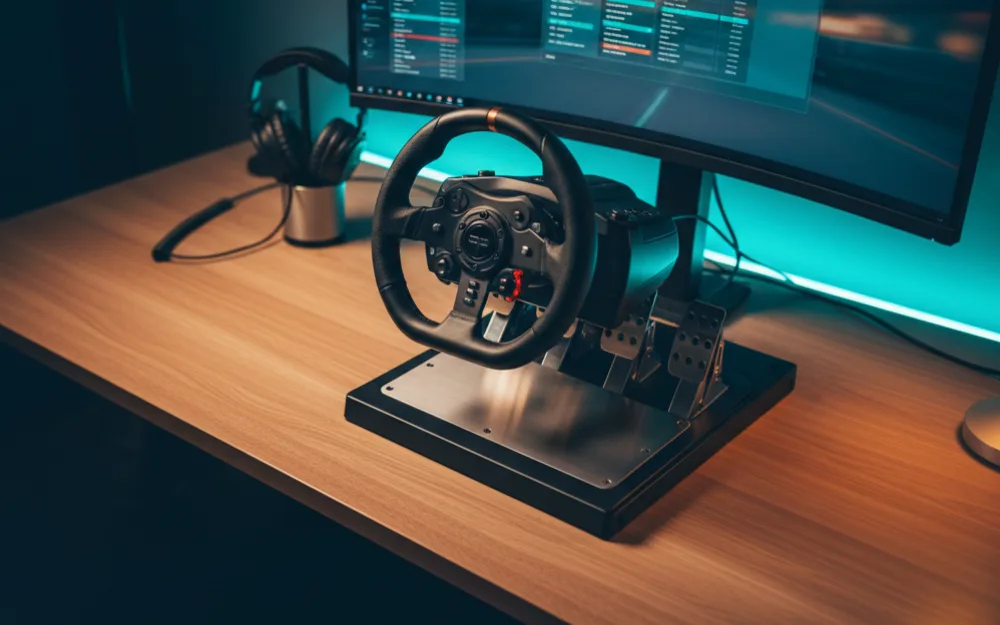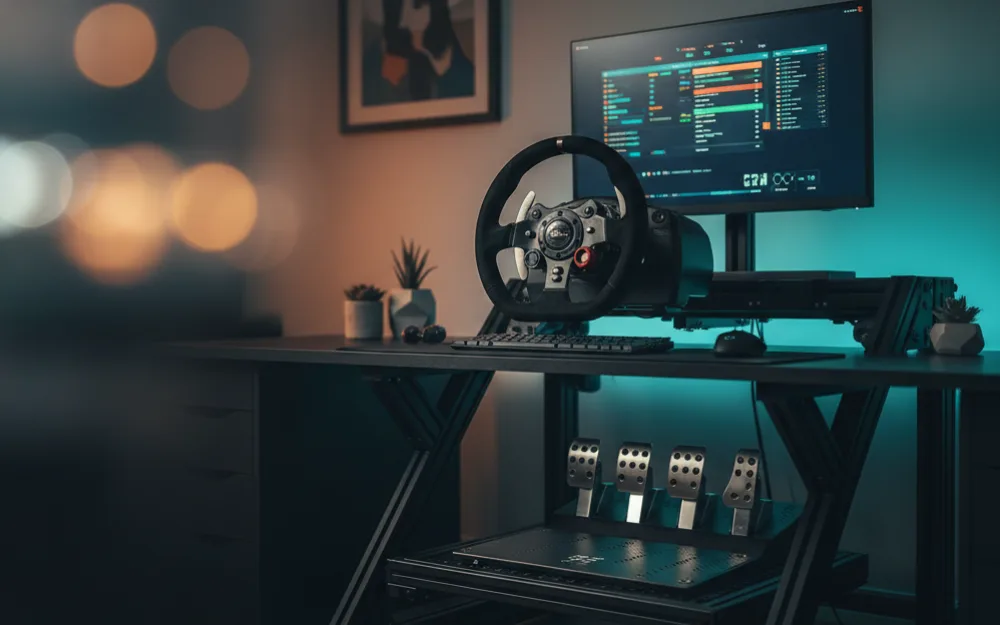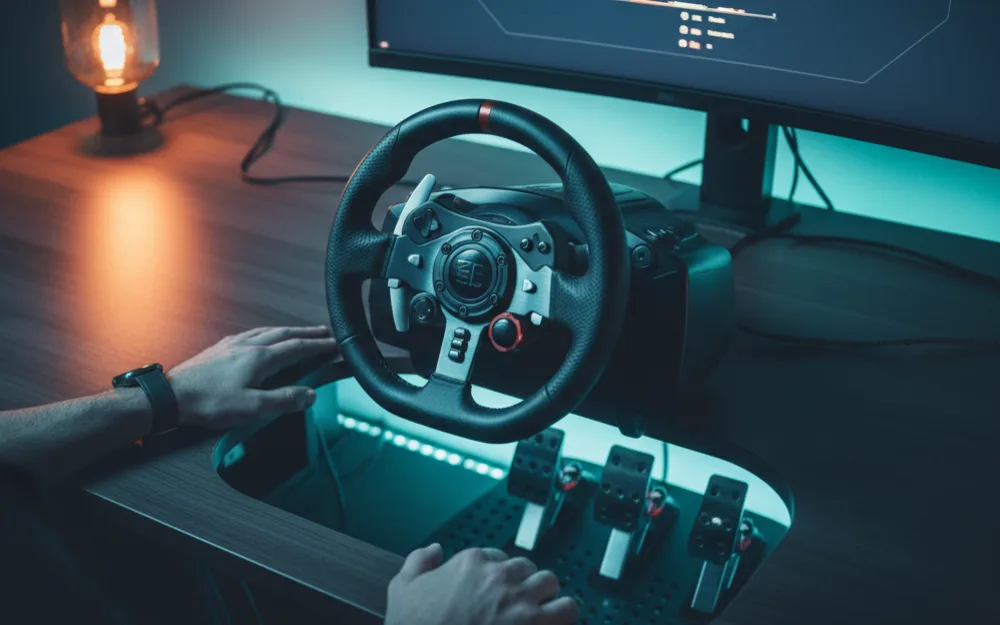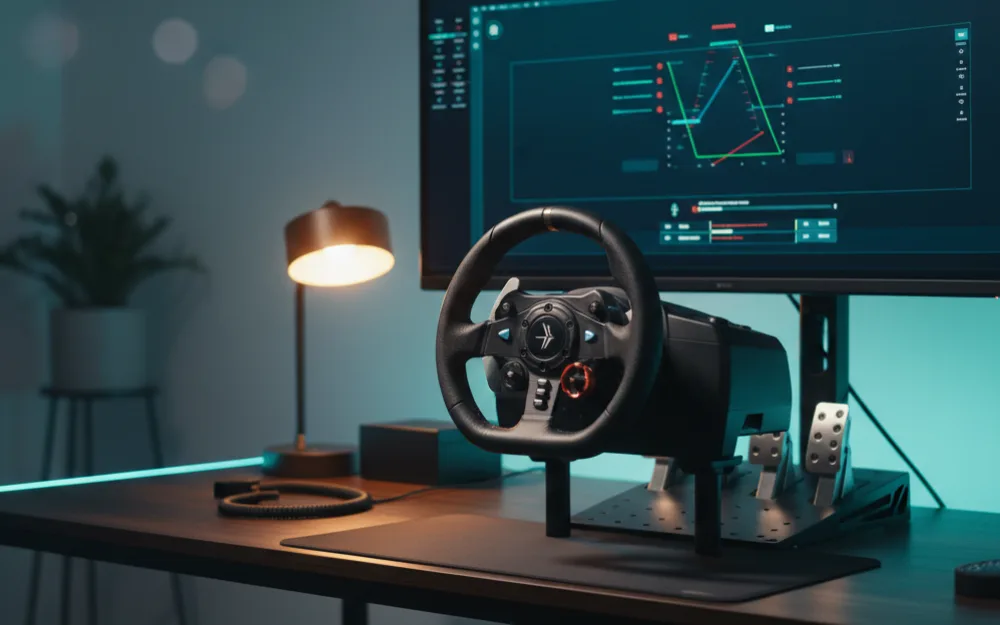


By the end of this guide you will have a clipping free force feedback baseline for EA Sports WRC that works across wheel brands, tuned for what a rally stage actually asks of a wheel rather than what a tarmac circuit does. Loose surface driving is a different job for your force feedback than GT or open wheel racing: grip is lower and changes constantly, the car talks to you mostly through how quickly it starts to slide, and ruts and rock strikes can kick the wheel hard enough to matter. This guide covers your wheel’s driver software, EA Sports WRC’s own force feedback menu, and the specific feel goals of gravel, snow, and tarmac stages.
We built this baseline by comparing how EA Sports WRC’s engine handles force feedback with the approach experienced rally sim drivers use to tune it, and you can read how we review. Treat every value below as a common starting point to tune to your own wheel and preference, not a universal answer, and browse more of our setup and settings guides once this one is dialed in.
What loose surface driving asks from your force feedback
On tarmac, self-aligning torque builds smoothly and predictably as grip loads up through a corner. On gravel or snow, that same signal is lighter, shorter lived, and arrives with far less warning, because the surface itself has less grip to give in the first place. If you set your strength while sitting on a clean, hard packed stage, you will likely find it too weak the moment you hit loose gravel or too aggressive the moment you cross back onto tarmac. The main cue you are chasing is how quickly the front end starts to wash out, not raw weight, and a rally specific baseline has to leave room to feel that difference rather than flattening every surface into the same sensation.
The second thing loose surfaces add is physical kickback. Ruts, compression over crests, and rock strikes can snap the wheel in your hands far more abruptly than a curb on a circuit does. That is a genuine safety consideration on a strong direct drive base, so part of this baseline is about rounding off the sharpest hits without losing the information they carry.
Set up your wheel’s driver software first
Whatever wheel you run, from Logitech G HUB to Fanatec’s tuning menu and FanaLab, MOZA Pit House, or Thrustmaster’s control panel, the driver level goal is the same: get out of the way of the game. Set rotation to the full range and turn on Soft Lock so EA Sports WRC matches the angle to each car, rather than fixing a number yourself. Set overall base strength to a moderate level with real headroom left, since you will do the fine tuning inside the game. Keep driver level spring, damper, and friction effects off or low to start. Those filters add artificial resistance that hides the exact surface detail you are trying to feel, and the game’s own Suspension and Collision sliders will do a better job of controlling kickback than a blanket driver setting.
Set force feedback inside EA Sports WRC
EA Sports WRC exposes its force feedback as a set of sliders rather than one master dial, and each one earns a different job. On PC there is no master strength slider, so Self Aligning Torque sets the overall force you feel and is where you start. Pick a fast gravel stage with a hard compression or a big rock strike somewhere on it, drive it at real pace, and raise Self Aligning Torque gradually until the wheel goes dead or flat right at that hardest moment, which is clipping, then back it off one step. Set too high, it makes the wheel heavy, so keep enough restraint that you can feel the car go light on loose surfaces without the signal turning vague. Tire Friction carries the understeer cue, and it works in reverse: a lower value makes the front end washing out more pronounced, so a light adjustment adds real information about the front axle without drowning the rest of the feedback in noise. Wheel Friction adds overall weight to the wheel, and a low setting is enough. Finally, the Suspension and Collision sliders control how much of a rut or rock strike’s physical kickback reaches your hands. Keep them moderate so you still feel the surface, but lower Collision a touch if hard hits are turning into a genuinely jarring snap rather than useful information.
| Setting | A common starting point | What it does |
|---|---|---|
| Driver rotation | Full range, Soft Lock on so the game sets it per car | Lock to lock steering angle |
| Driver base strength | Moderate, with headroom left | Ceiling the in game sliders work within |
| Driver spring / damper / friction | Off or low | Artificial resistance that can hide surface detail |
| Self Aligning Torque | Raise until clipping on the hardest hit, then back off one step | Overall force level, since there is no master slider on PC |
| Wheel Friction | Low | Adds overall weight to the wheel |
| Tire Friction | Light adjustment, lower for a stronger cue | A distinct cue for the front end washing out |
| Suspension and Collision | Moderate, Collision lowered only if kickback feels harsh | How much rut and rock strike kickback reaches your hands |
How to tune from here
Change one setting at a time and drive a full stage, ideally one that mixes surfaces, before judging it. If the wheel goes dead under a hard hit, you are clipping, so lower Self Aligning Torque a step. If everything feels light and vague across the board, raise Self Aligning Torque slightly and lower Tire Friction a touch so the understeer cue stands out, since those two carry most of the useful cue on loose surfaces. If kickback over ruts or rocks feels harsh enough to be uncomfortable, lower Collision a small amount before you touch anything else, since that calms the sharpest hits without flattening the rest of the feedback. Recheck across gravel, snow, and tarmac whenever you change stages, since each surface loads the wheel differently.
Common mistakes
The most common mistake is tuning strength entirely on a smooth, high grip stage and carrying that number onto loose gravel or snow, where it usually turns out too aggressive on the hardest hits or too weak everywhere else. A second is turning to Tire Friction to fix a wheel that feels vague overall, when the real issue is Self Aligning Torque set too low; Tire Friction can only sharpen a cue on top of a signal that is already there. A third is raising driver level damping to control kickback instead of using EA Sports WRC’s own Collision and Suspension sliders, since driver damping mutes the entire force feedback signal evenly rather than just rounding off the sharpest hits.
Your next step
Load a rough gravel stage, set your driver software to a moderate default, then run the clipping method above on Self Aligning Torque before you touch anything else. To understand the units and concepts behind these sliders, read what is force feedback and FFB damping, friction, and inertia explained. If you are still deciding whether the game itself is worth your time, see our EA Sports WRC review, and if you race across more than one platform, our sim racing wheel compatibility guide covers what each wheel supports.