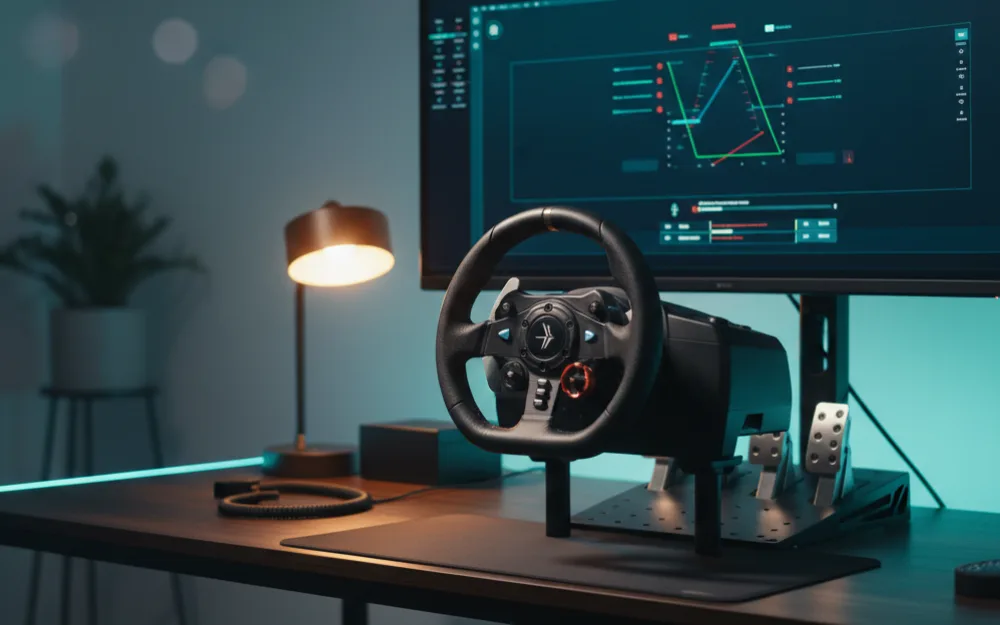


This guide walks you through Moza Pit House, the app that controls every Moza wheel base, so you can set rotation, strength, and filters with confidence instead of poking at sliders you do not understand. By the end you will know what each core control does, a safe baseline to start from, and how the app works alongside your game’s own settings. Before you open it, hold one idea in mind: Pit House sets the foundation, and the game does the fine tuning on top. Get that order right and everything else falls into place.
These recommendations come from comparing Moza’s own documentation with how experienced Moza owners configure their bases, and you can read how we review. If direct drive is new to you, read what is direct drive and browse Getting Started first.

Safety first with a direct drive base
Moza bases are direct drive, which means real force can arrive fast. Before you turn strength up, keep both hands gripping the wheel, keep your thumbs outside the spokes, and start at a lower strength while you learn the base. Reduce it further for a lighter or younger driver, and step it up gradually as you get comfortable. Pit House is also where you set these limits, so treat the strength slider as a safety control as much as a feel control.
Install it and update the firmware
Start clean. Install Pit House on your PC, connect the base, and let the app check for a firmware update. Run any pending firmware and app updates before you tune anything, because updates often fix behavior and add features, and it saves you from chasing a problem that a newer version already solved. Once updated, the app should show your base and wheel on its main screen. If it does not, reseat the USB and confirm the base has power.
The core controls and what each one does
Pit House has many options, but a handful carry most of the feel. Learn these first and leave the rest at their defaults until you have a reason to change them.
Wheel rotation sets how far the wheel turns lock to lock. A good baseline is to set it to the full range and let each sim request the correct steering angle per car, which most modern sims do automatically. Strength, sometimes shown as maximum output, sets the base’s overall power ceiling. Keep it moderate while learning and raise it later. Road sensitivity or a similar gain control adjusts how much of the game’s detail comes through. The filters, including smoothing, damping, inertia, and friction, shape the character of the wheel; keep them low to start so you can feel the raw signal, then add a small amount only to cure a specific problem like a rough or nervous wheel.
| Pit House control | A common starting point | What it does |
|---|---|---|
| Wheel rotation | Full range, game sets per car | Lock to lock steering angle |
| Strength / max output | Moderate while learning | Overall power ceiling and safety limit |
| Smoothing | Low | Softens the signal; too much hides detail |
| Damping | Low to none | Adds resistance to movement; can feel heavy |
| Inertia and friction | Low | Adds mechanical character; use sparingly |
Let the base and the game share the work
The most common mistake is pushing both Pit House and the game to maximum, which clips the signal and hides detail. Instead, set Pit House strength to a moderate, comfortable ceiling, then do your fine strength tuning inside the game using its Gain or strength control while watching its force feedback meter. If the wheel feels too light overall after you tune the game, raise the Pit House strength one step to bring the weight back. This split keeps the base powerful without overwhelming the signal.
Save profiles per game
Pit House lets you store settings as presets in its preset library, so you can load the right one for each game. Once you find a base configuration you like for a sim, save it as a preset for that game so you are not resetting sliders every time you switch titles. Different sims deliver force feedback differently, so a profile that feels great in one may want slightly less smoothing in another. Keeping separate profiles is the tidy way to manage that without redoing your work.
Common questions the app raises
| Situation | What to do |
|---|---|
| Wheel feels rough or notchy | Add a small amount of smoothing, not a large amount |
| Wheel feels dead at the hardest corners | Lower in game strength; you are clipping |
| Wheel feels too heavy to turn quickly | Reduce damping and friction toward zero |
| Steering angle is wrong in one game | Set rotation to full and let that game set its own per car |
| Base not detected | Reseat USB, confirm power, and run the firmware update |
Who needs to dig deep, and who can keep it simple
| Explore the filters if | Keep the defaults if |
|---|---|
| You want to fine tune the wheel’s character to your taste | You just want a solid, clean feel with minimal fuss |
| You race several sims and want a profile for each | You mostly play one game and set it once |
| You are chasing the last bit of detail and consistency | You are new and want a safe, readable starting point |
Your next step
Update the firmware, set rotation to full, put strength at a moderate ceiling, and keep the filters low. Then do your fine tuning in the game and save a profile per sim. For game specific numbers, see our Moza R5 settings for Assetto Corsa Competizione and Moza R5 iRacing settings guides. To place your base in the wider market, read the best direct drive wheels, and to understand its power, torque in Nm explained.